Overview
Cloud Licensing allows users to access their licenses by signing in with their Chaos Account in the product. Users can access licenses from any location, without the need to be on the same local network or connect through a VPN to a License Server.
Starting in 2026, new versions of Chaos products have Cloud Licensing built directly into the product. These versions can access licenses without а License Server.
Cloud Licensing is optional — you can continue using your licenses offline with your existing License Server if you prefer, and you can switch back at any time. However, new product versions configured for Cloud Licensing will not be able to use the licenses borrowed from the existing License Server.
Do you want to keep working offline? Do NOT migrate to Cloud Licensing, since it works only online.
Download video for extra information about Cloud licensing by click on this image.
Preparation: Release Any Borrowed Licenses
- Make sure you have an Internet connection. Cloud Licensing requires an Internet connection and uses your Chaos Account to sign in with the product. Releasing borrowed licenses requires an active Internet connection.
- Open the local License Server’s interface in a browser, accessible at localhost:30304 by default.
- To release a borrowed license, click on the Online Licensing menu. Then click the RELEASE button to release any borrowed licenses and confirm your choice.
Migration
After the Preparation steps are complete:
- Install or update to a Chaos product version that has Cloud Licensing built-in.
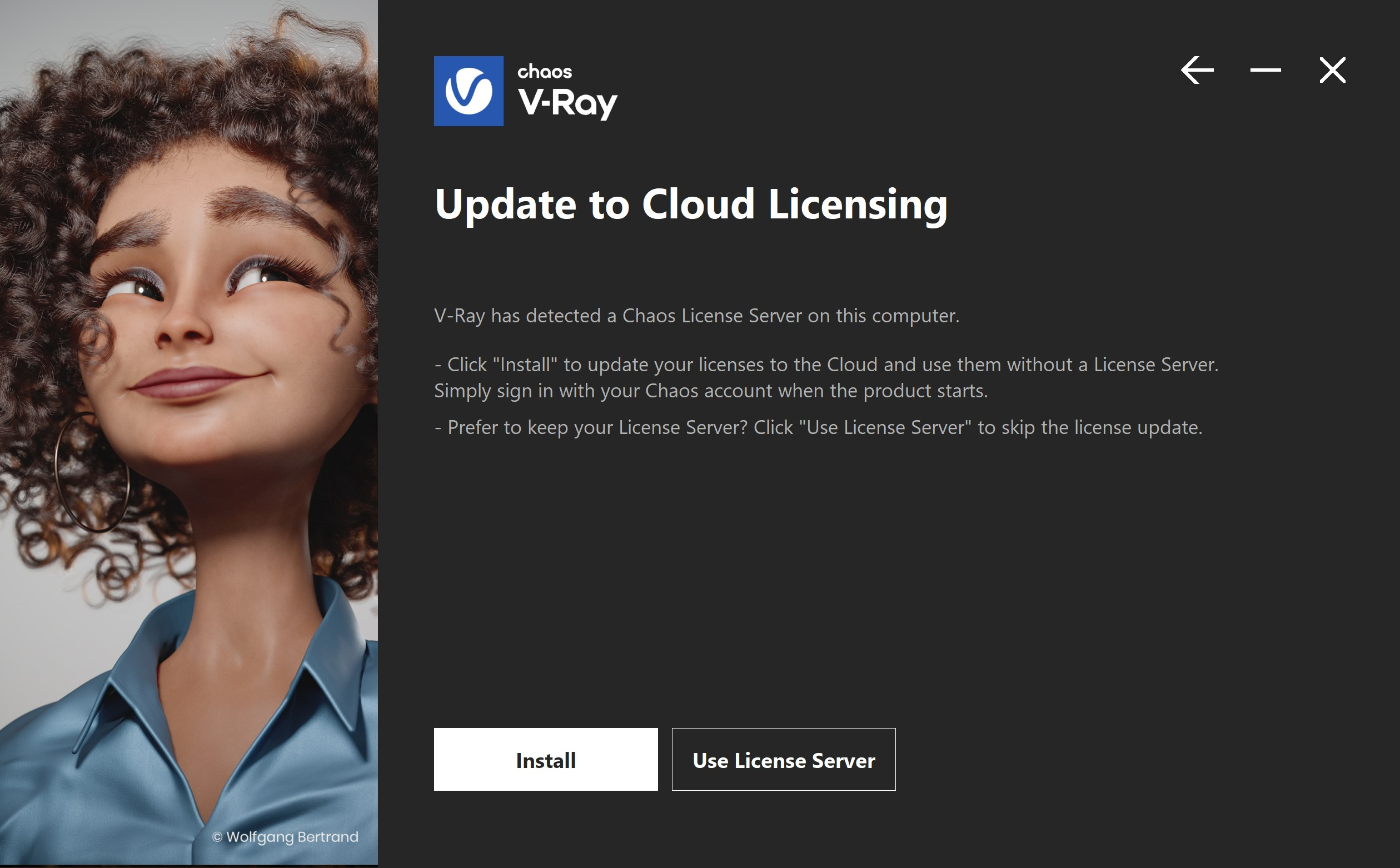
- During installation, the installer will suggest updating the licensing setup to Cloud Licensing (you have the option to stay on the Local License Server, if needed).
- Click Install to switch to Cloud Licensing, then finish the installation.
- After this, the newly installed product will use Cloud Licensing directly. The local License Server will remain installed on the device, and older product versions can continue using it.
After migration
For any product version that uses Cloud Licensing:
- Open the product.
- When asked, sign in with your Chaos Account and start using the product.
Important Note on Render Nodes and Offline Environments
Cloud Licensing requires:
- The machine has Internet access, and doesn't use VPN, and is not blocked by a firewall.
- The user can sign in interactively.
Because of this:
- Fully offline environments are not supported by Cloud Licensing. If you need to use your licenses offline, install the product with the License Server configuration and borrow your licenses from the License Server’s interface.
- Lab machines, render nodes, and other unattended systems that cannot sign in with a user account are not good candidates for Cloud Licensing.
- These machines should continue using your existing License Server deployment. It can run in parallel with Cloud Licensing for other users and machines.
Was this article helpful?
That’s Great!
Thank you for your feedback
Sorry! We couldn't be helpful
Thank you for your feedback
Feedback sent
We appreciate your effort and will try to fix the article