Overview
If you are an individual license holder, you will be prompted to log in during installation, or you can log in directly from within Enscape itself. If you are using a floating license provided via an administrator account, the account owner must invite your email address to be part of their organization.
Cloud Based Floating License
The administrator can share the 'floating' licenses with all members or guests within the organization. Every user added to the organization can use the shared licenses by installing the Chaos product with default settings and logging into the product with their own Chaos account.
- Log in to my.chaos.com and go to the Organization tab in the toolbar.

Go to the three-dot menu next to 'Users' and select Invite Users.
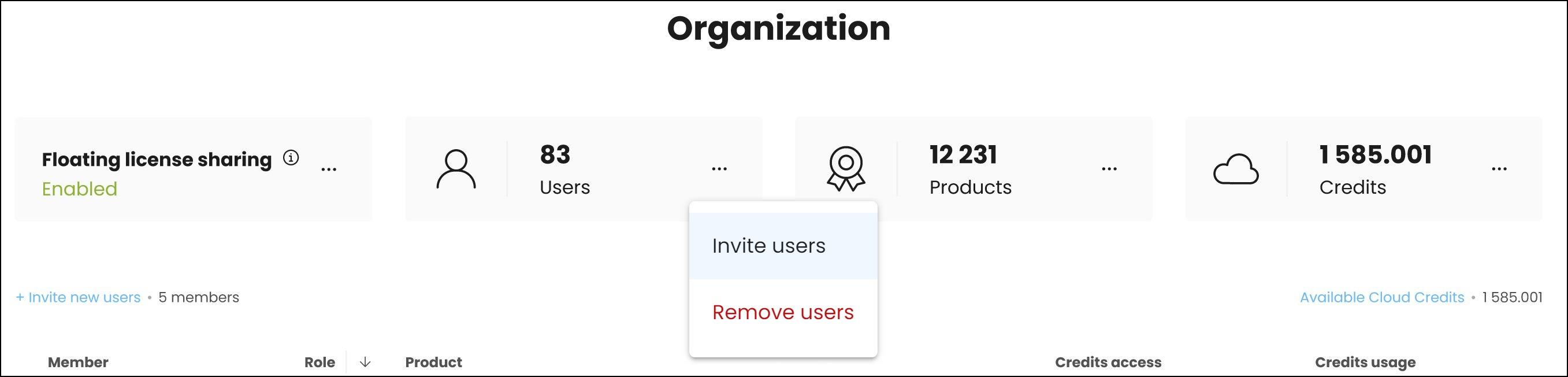
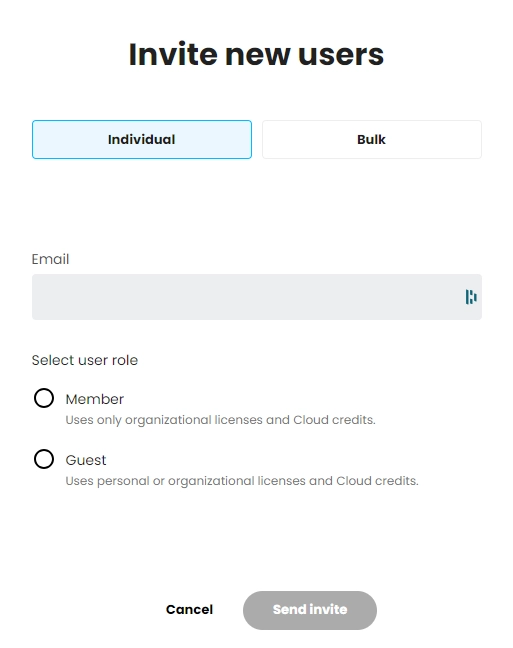
- Invite users to your organization.
- Floating.
Individual – one user at a time.
Bulk – multiple users at once by uploading a CSV file.
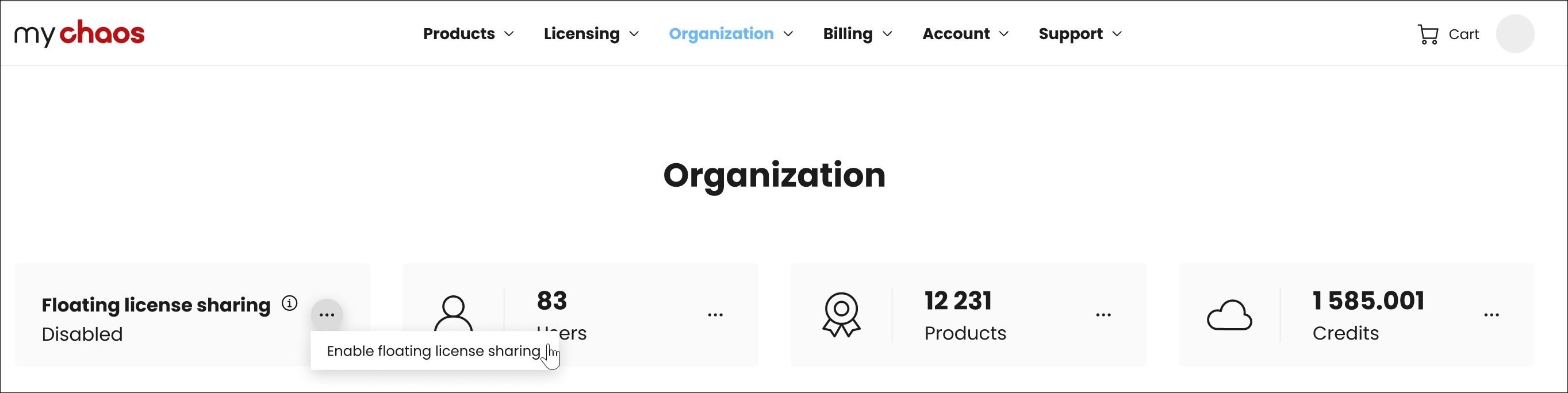
- To enable the sharing of 'floating' licenses, open the three-dot menu next to the option and click Enable Floating license sharing.
- From this moment on, every user within the organization can make use of a shared floating license.
- Fixed (Solo) licenses are not affected when floating license sharing is enabled. Instead, these licenses are assigned individually.
Allocate License
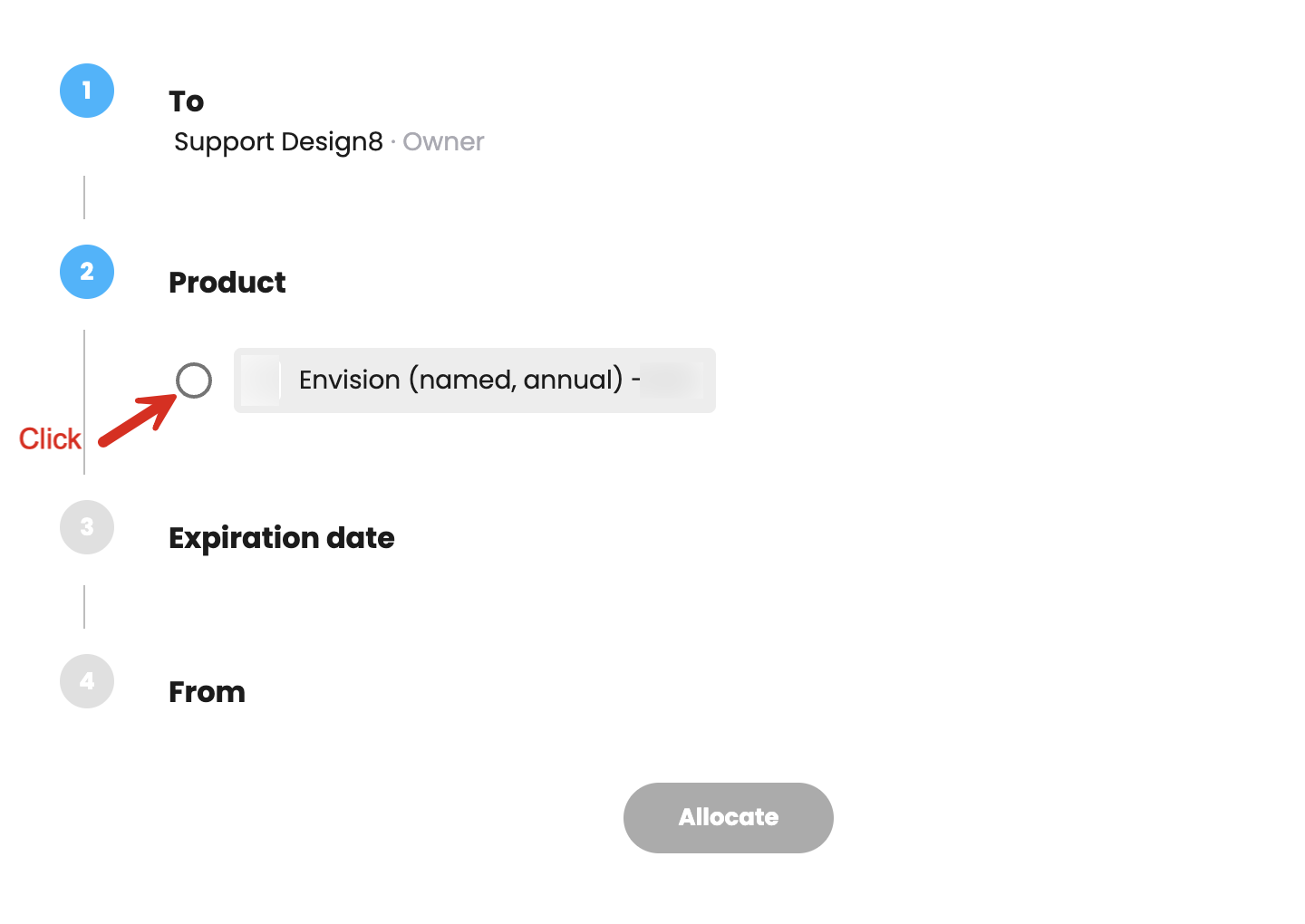
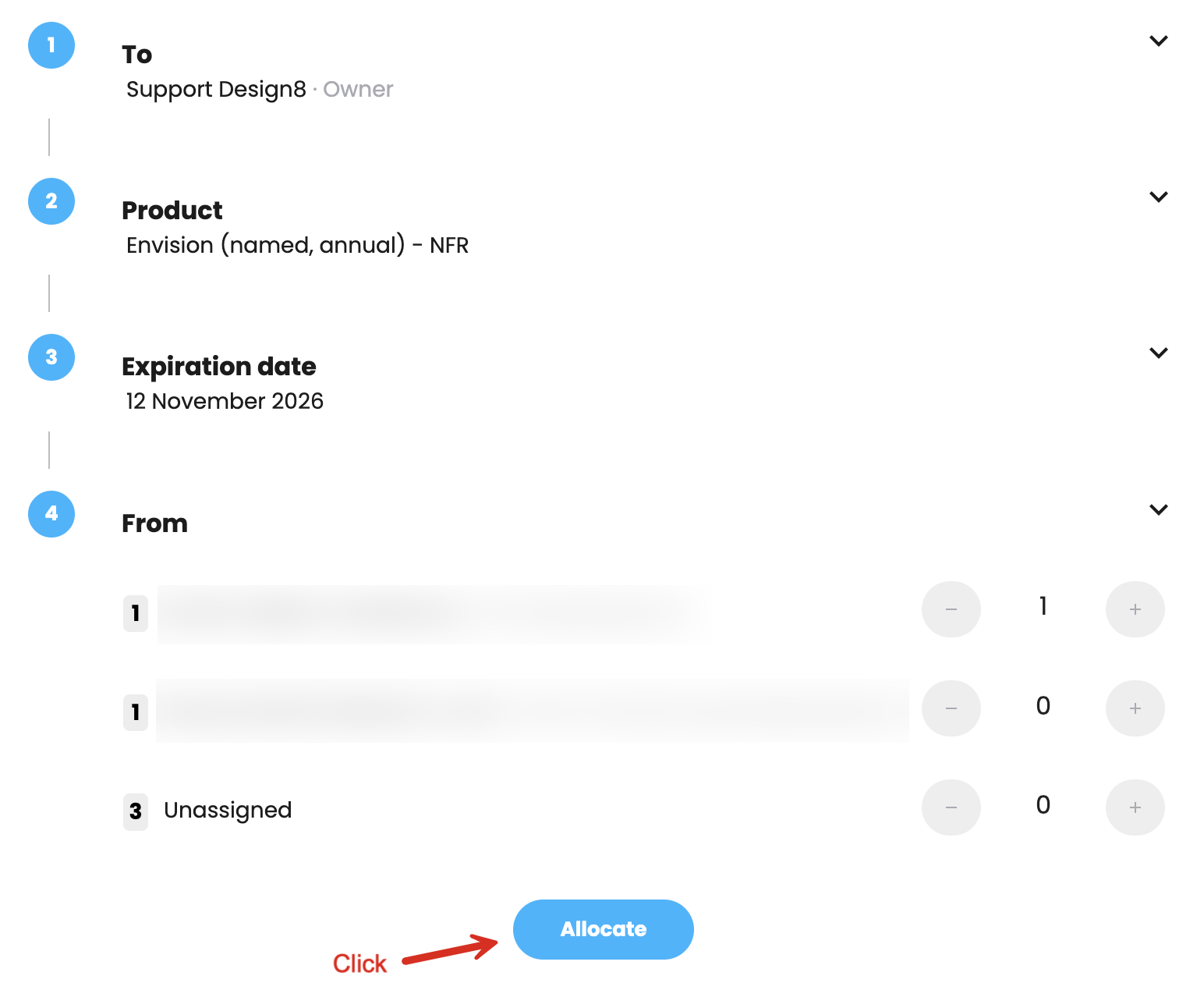
Click the three dots to Allocate a product to a user.
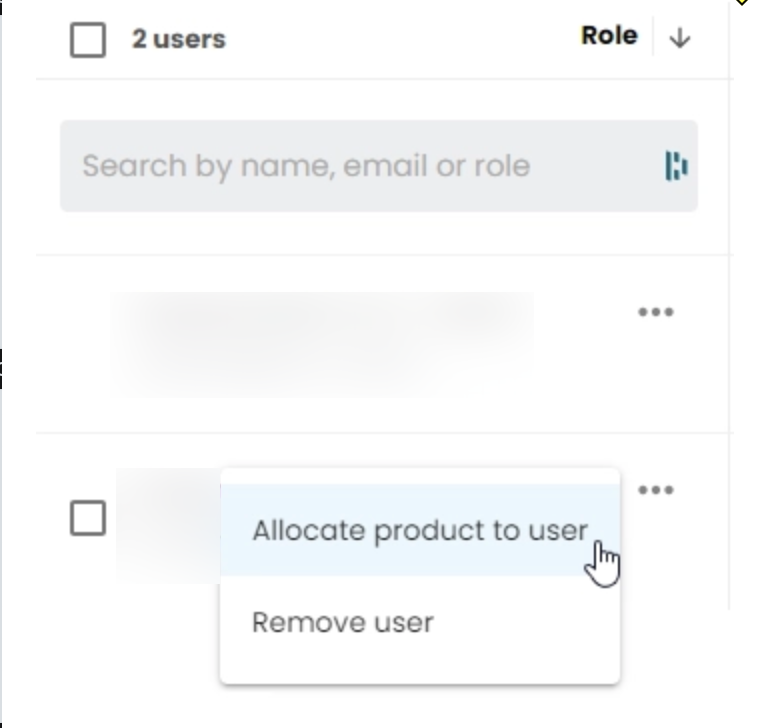
Follow these steps untill you reach the last step to allocate
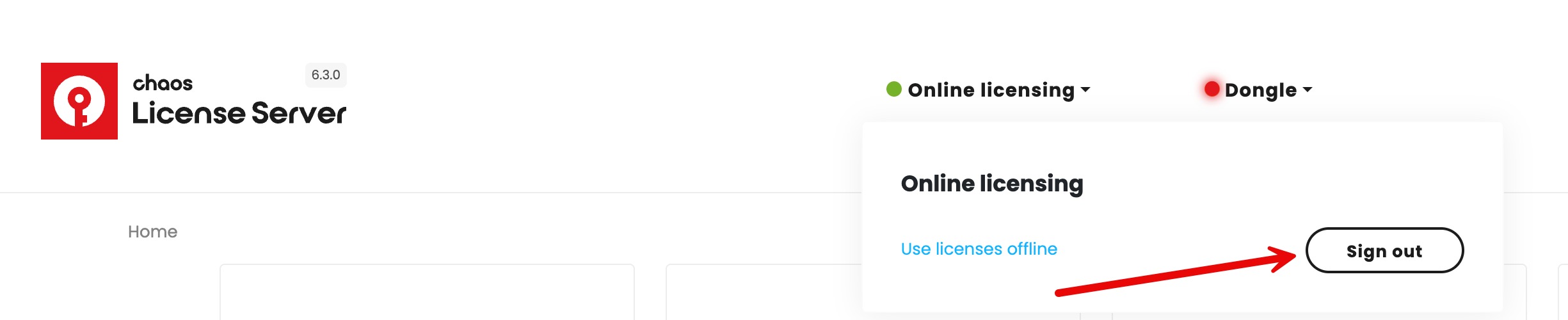
Please note: Ensure that you log in as the user to whom you have assigned the license. You can do this by navigating to http://localhost:30304/ and logging in with the correct account to which you just assigned the license.

If you are still logged in as the Account Owner and this is not the person to whom you assigned the license, please log out and log back in with the correct person.
Was this article helpful?
That’s Great!
Thank you for your feedback
Sorry! We couldn't be helpful
Thank you for your feedback
Feedback sent
We appreciate your effort and will try to fix the article